How to Change Battery in Hume Band? Complete Guide 2026
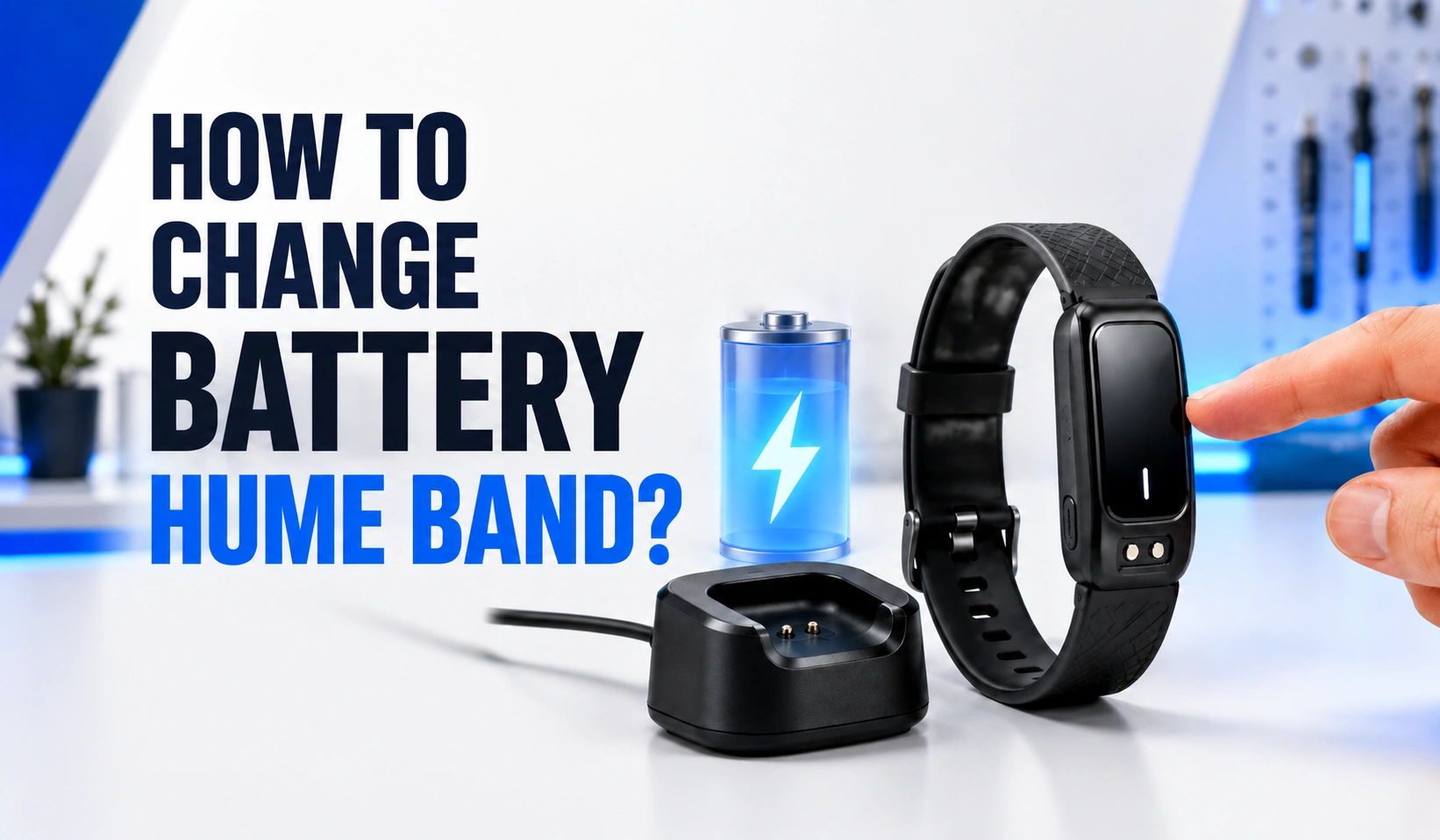

The Hume Band does not use a removable watch battery. It contains a rechargeable lithium-ion battery inside the sealed sensor housing.
According to Hume Health’s official safety instructions, users should not open the device or attempt to replace its battery themselves.
This guide explains how the battery works, how to charge the Hume Band correctly, how to troubleshoot rapid battery drain, when to contact Hume Health, and how to care for the device safely.
Can You Change the Battery in a Hume Band?
No, you should not change the Hume Band battery yourself.
The Hume Band is a compact wearable device with an integrated rechargeable lithium-ion battery, multiple sensors, Bluetooth components, and charging hardware.
The battery is enclosed within the sensor housing rather than placed inside a user-accessible compartment.
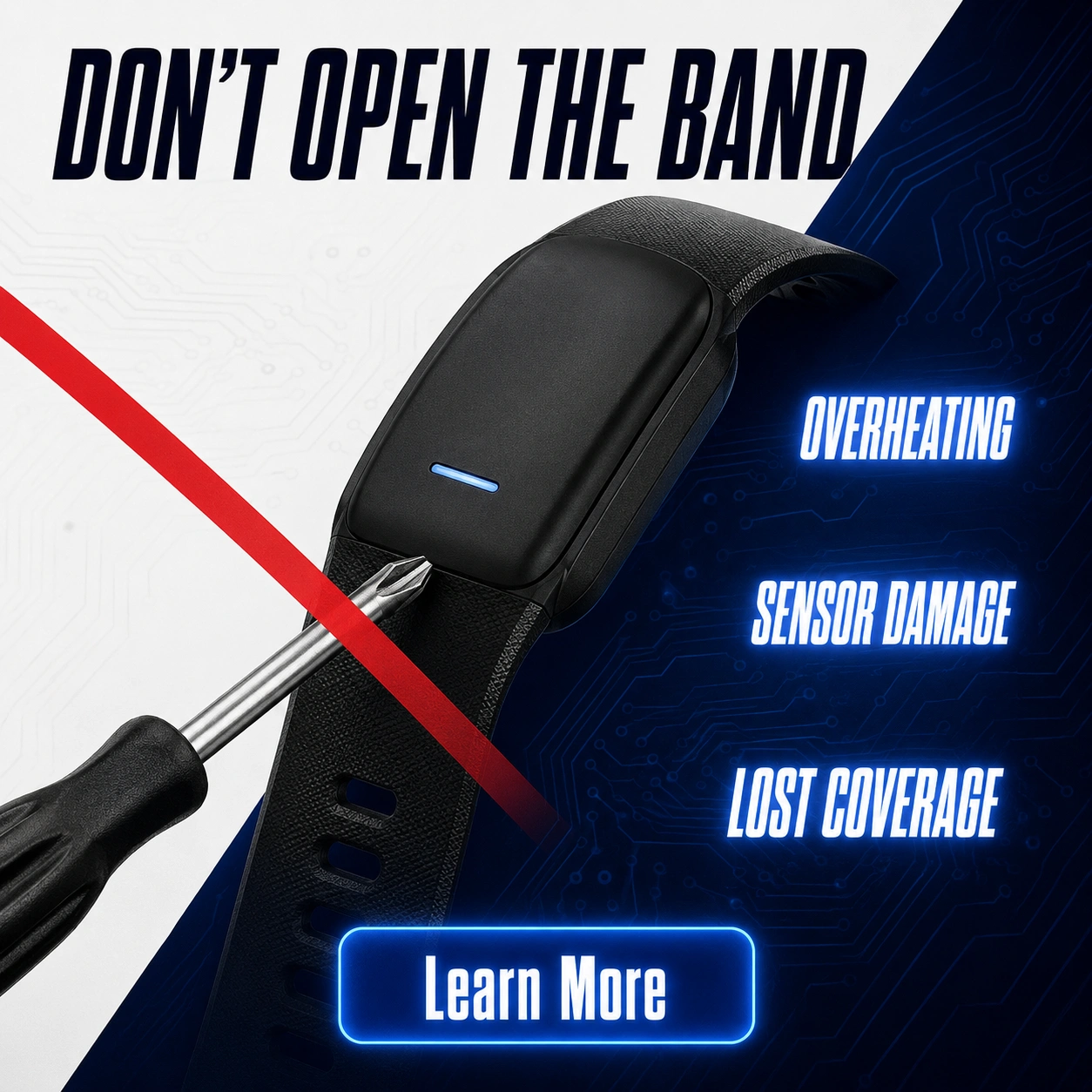
Hume Health clearly advises customers not to attempt a battery replacement. Opening the sensor could damage the Band and may cause overheating or physical injury.
If the internal battery is no longer performing properly, contact Hume Health for guidance on available service or replacement options.
The safest options are:
- Recharge the Band using its original charging equipment.
- Troubleshoot the charging connection and power source.
- Calibrate the battery if it drains unusually quickly.
- Update the Hume Health app and Band firmware.
- Contact Hume Health if the problem continues.
- Request service or replacement when the internal battery fails.
How the Hume Band Battery Works
The Hume Band uses a built-in rechargeable battery to power its sensors, Bluetooth connection, and indicator lights.
During use, the Band collects information such as heart rate, heart rate variability, movement, sleep patterns, blood oxygen, skin temperature, activity, strain, and recovery.
All these functions consume energy. Continuous sensor activity generally uses more power than occasional tracking.
Bluetooth synchronization also requires energy because the Band must communicate with the Hume Health app.
The Band’s internal charging system replenishes the battery without requiring the battery to be removed from the sensor.
The rechargeable design provides several practical advantages:
- No small disposable battery needs to be removed.
- The sensor housing can remain compact.
- The device can support frequent data collection.
- Regular recharging is quicker than arranging battery replacement.
- Users can view the approximate battery level through the app.
Identify Your Hume Band Model First
Before troubleshooting the battery, determine whether you have the original Hume Band or Hume Band 2.0.
The two versions may have different battery-life expectations, hardware designs, and charging accessories.
The original Hume Band is described in the official Hume Health FAQ as providing approximately four to five days of battery life under typical usage conditions.
Continuous heart-rate monitoring, overnight blood-oxygen monitoring, and frequent app synchronization may shorten the time between charges.
Hume Band 2.0 is advertised as providing up to 14 days of battery life on a single charge under typical conditions.
You can identify your model by checking:
- Your order-confirmation email
- The original product packaging
- The printed quick-start guide
- The paired-device section of the Hume Health app
- Your customer account or purchase history
- The charging accessory included in the package
Hume Band Battery Life by Model
Battery performance depends on the model, enabled features, frequency of synchronization, temperature, and individual usage patterns.
| Hume Band version | Advertised battery life | Charging information |
| Original Hume Band | Up to 4–5 days under typical use | Approximately 30 minutes for a full charge |
| Hume Band 2.0 | Up to 14 days under typical use | Approximately 20–80 minutes, depending on battery level |
Battery life varies by model, settings, monitoring features, sync frequency, and usage conditions. Check Hume Health’s current product documentation for the latest specifications.
How to Charge the Hume Band Correctly
Proper charging is the first solution when your Hume Band stops responding or displays a low battery level.
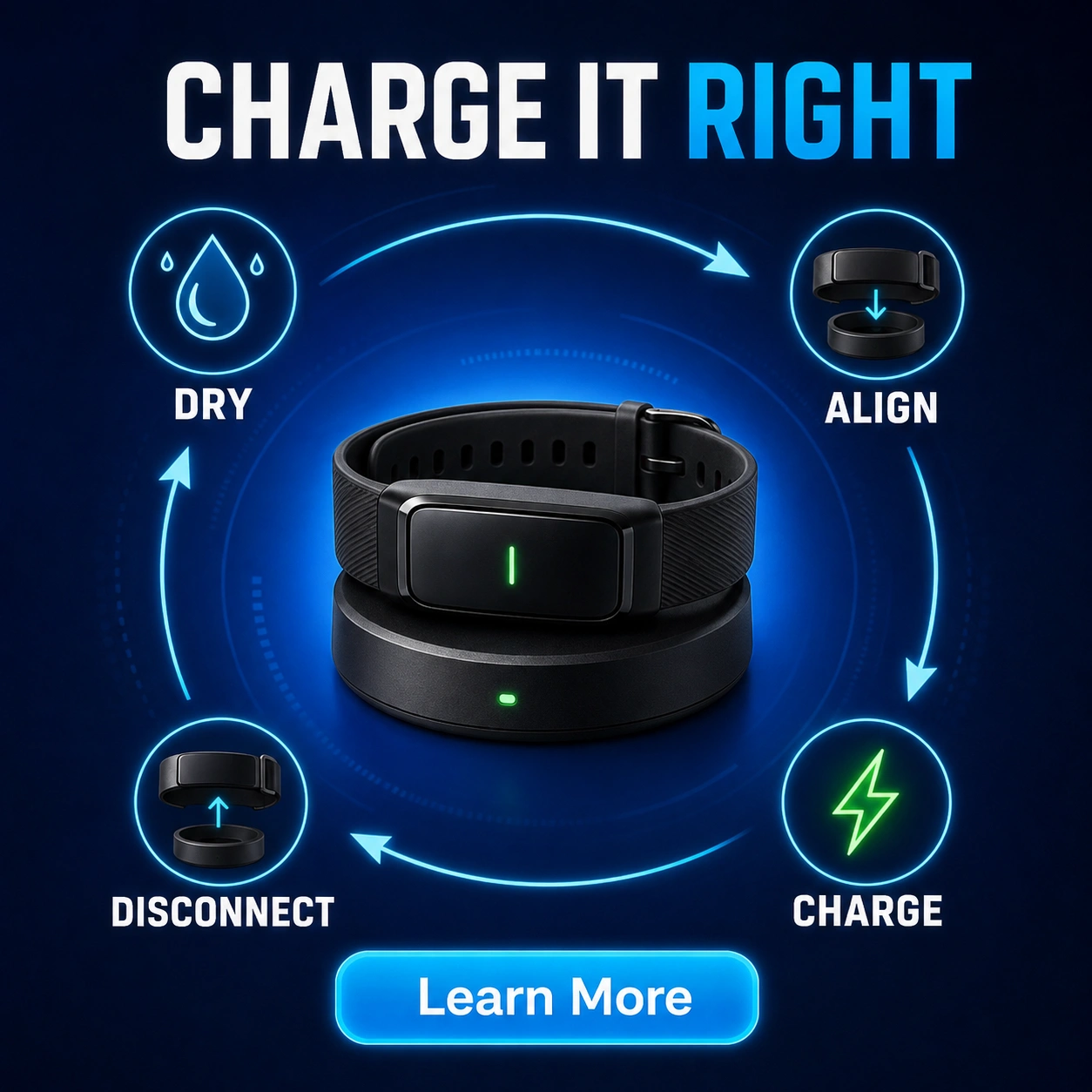
Step 1: Inspect the Band
Examine the sensor housing and charging area before connecting the device to power. The Band should not have visible cracks, separation, swelling, melted areas, or serious impact damage.
Do not continue charging if the device:
- Appears swollen or distorted
- Has a separated sensor housing
- Produces a burnt or unusual smell
- Becomes excessively hot
- Shows signs of liquid inside the enclosure
- Has damaged charging contacts
- Has been crushed, punctured, or burned
Step 2: Dry the Sensor and Charger
Remove the Band after swimming, showering, exercising, or washing your hands, and let it dry completely before charging.
Although Hume Band 2.0 is described as IP68 dustproof and water-resistant, water resistance does not mean you should connect it to power while it is wet.
Dry the sensor using a clean, soft, lint-free cloth. Do not place it on a radiator or use a hair dryer. Excessive heat can damage the device and shorten battery life.
Step 3: Clean the Charging Area
Skin oil, lotion, sweat, dust, and dried residue can prevent the charging components from connecting reliably.
Disconnect the charging accessory from power. Gently wipe the Band’s charging area and the corresponding surface on the charger with a dry microfiber cloth.
Do not scrape the contacts with:
- Knives
- Pins
- Metal tools
- Sandpaper
- Abrasive cleaners
- Rough brushes
Step 4: Position the Band Properly
Place the Band on the charging dock or connect it using the charging equipment supplied with your specific model.
Check that the device sits evenly and that the charging points are correctly aligned. A partially connected sensor may fail to charge or charge intermittently.
Do not force the Band into the charger. If it does not fit normally, verify that you are using the correct accessory.
Step 5: Connect a Reliable Power Source
Connect the charging cable to a compatible, dependable power source. A damaged adapter, low-powered USB hub, loose outlet, or faulty cable may prevent the Band from charging properly.
When testing the power source:
- Connect the original charging equipment.
- Wait for the charging indicator.
- If nothing happens, try another suitable USB power source.
- Check whether the cable becomes loose during use.
- Avoid repeatedly connecting and disconnecting it within seconds.
Step 6: Look for the Charging Indicator
The Hume Band should display a charging indicator when it is properly connected. The Hume Health app may also show the current battery percentage after synchronization.
If the indicator does not appear, remove the Band, check its alignment, clean the charging area, and reconnect it carefully.
A Band with a completely depleted battery may not respond immediately. Leave it connected for several minutes, then check again.
Step 7: Allow the Battery to Reach a Full Charge
The original Hume Band generally takes approximately 30 minutes to charge completely.
Hume Band 2.0 may take approximately 20 to 80 minutes, depending on its starting battery level and charging conditions.
Charging time may vary if:
- The battery is completely empty.
- The power source supplies limited power.
- The connection is unstable.
- The Band is too hot or cold.
- Battery calibration is required.
- The charging equipment is damaged.
Step 8: Remove the Band After Charging
Once the Band reaches 100%, disconnect it and resume normal use. Once the Band is fully charged, disconnect it from the charging equipment and resume normal use.
Removing the Band after charging also reduces unnecessary heat exposure and keeps the sensor available for continuous tracking.
What to Do When the Hume Band Is Not Charging
A Band that does not immediately charge may not need a new battery. Several common problems can interrupt the charging process.
Reconnect the Device Carefully
Remove the Band from its charging equipment and inspect the connection. Reposition it so the charging surfaces are fully aligned.
Check the Cable and Charger
Inspect the charging cable for damage, including:
- Fraying
- Loose connectors
- Bent sections
- Exposed wire
- Burn marks
- Melted plastic
- Dark or corroded contacts
Try Another Compatible Power Source
A USB port or wall adapter may look normal but fail to supply consistent power. Try another compatible source and observe whether the charging indicator appears.
Give a Fully Depleted Battery Time
A completely discharged Band may take several minutes to show a charging response. Place it on the charger and wait without moving it repeatedly.
Monitor the sensor during this period. If it becomes excessively hot, disconnect it if it is safe to do so and contact Hume Health.
Check the App
Open the Hume Health app and review the paired-device status. If the app recognizes the Band, allow it time to synchronize and update the displayed battery percentage.
The app may temporarily show an older charge level if synchronization hasn’t completed.
Restart the Hume Health App
If the battery is charging but the percentage does not change:
- Force-close the Hume Health app.
- Reopen the application.
- Confirm that Bluetooth is enabled.
- Place the phone close to the Band.
- Attempt another synchronization.
- Check for an available app update.
Restart the Phone
Restarting the phone can clear temporary Bluetooth and background-process problems. After the restart, open the Hume Health app and try to connect again.
Restart or Re-Pair the Band
Hume Health’s troubleshooting instructions include restarting and re-pairing for certain connection problems. Follow only the instructions shown for your device and current app version.
Re-pairing may help when the Band has power but cannot communicate with the application. It will not repair a physically defective battery or damaged charger.
How to Fix Rapid Hume Band Battery Drain
Rapid battery drain can occur even when the Band charges normally. Before requesting a replacement, investigate whether calibration, usage, software, or temperature is affecting runtime.
Perform Battery Calibration
Hume Health’s current troubleshooting instructions recommend battery calibration for your Band model; follow those instructions.
For the original Hume Band, Hume’s quick-start guidance describes a longer charging period for calibration; this differs from the Band’s normal charging time.
For safe calibration:
- Inspect the Band for physical damage.
- Dry and clean the charging area.
- Connect the original charging equipment.
- Place it on a hard, ventilated surface.
- Leave it connected for at least three hours.
- Remove it and resume normal use.
- Record how long the battery lasts.
Update the App
An outdated application may experience syncing or battery-display problems. Visit your phone’s app store and install the latest official Hume Health app update.
Allow Firmware Updates to Finish
Firmware controls how the Band’s sensors, Bluetooth connection, and battery-management functions operate. Official updates may improve reliability or correct technical problems.
Keep the Band sufficiently charged during firmware installation. Do not intentionally disconnect it or force-close the app unless instructed.
Reduce Unnecessary Syncing
Frequent Bluetooth synchronization consumes energy. The official Hume Health information notes that frequent syncing may reduce battery life.
Review Continuous Monitoring Features
Continuous heart-rate measurement, blood-oxygen monitoring, sleep analysis, movement tracking, temperature readings, and Bluetooth communication require battery power.
The original Hume Band FAQ states that continuous heart-rate monitoring can reduce battery life to approximately four or five days. It also explains that using SpO2 monitoring during sleep may further reduce runtime.
Protect the Band From Extreme Temperatures
Hume Health states that the Band is designed to operate between 32°F and 113°F (0°C and 45°C).
It can be stored between -4°F and 158°F (-20°C and 70°C), although repeated exposure to extreme temperatures may still reduce battery performance or damage the device.
Avoid leaving it:
- Inside a hot parked vehicle
- On a sunny windowsill
- Beside a radiator
- Near cooking equipment
- In freezing conditions
- Inside damp workout clothing
- Under bedding while charging
Track Battery Performance Before Contacting Support
A short battery record provides more useful evidence than simply stating that the device “dies quickly.”
Charge the Band completely and record:
| Information | What to document |
| Band model | Original Hume Band or Hume Band 2.0 |
| Starting charge | Confirm that the app shows 100% |
| Charging time | Note how long it took to reach full charge |
| Start time | Record when it was removed from the charger |
| Low-battery time | Record when it reached 20% |
| Shutdown time | Note when it stopped working |
| Tracking features | List continuous monitoring features used |
| Sync frequency | Note how often the app was opened |
| Temperature | Mention unusual heat or cold exposure |
| App version | Record the installed version |
Repeat this test for two or three complete charging cycles. Screenshots of the battery percentage can make the report more useful.
Why You Should Not Replace the Battery Yourself
A DIY repair may seem cheaper, but the Hume Band is not user-serviceable.
Risk of Puncturing the Battery
- A sharp tool can damage the internal lithium-ion cell. A punctured or crushed battery may overheat and create a serious safety risk.
Damage to Internal Sensors
- The Band contains precisely positioned optical and electronic components. Prying open the housing, removing adhesive, or applying excessive heat may damage these parts.
Loss of Water Resistance
- The enclosure and seals help protect the electronics from sweat, moisture, and dust. Opening the device may permanently compromise this protection, even if the housing closes again.
Incorrect Replacement Parts
- A replacement battery must match the required dimensions, voltage, chemistry, connector, capacity, and protective circuitry.
Inaccurate Tracking
- A repaired Band may turn on while its sensors remain damaged or incorrectly positioned. This can affect tracking consistency even when no visible error appears.
Possible Loss of Coverage
- Unauthorized disassembly or modification may affect your eligibility for warranty service or replacement. Contact Hume Health before arranging any repair.
How to Extend Hume Band Battery Life
Proper care may help preserve the battery’s useful capacity and reduce charging problems.
- Use the Correct Charger – Use the charging equipment supplied with your Hume Band or approved for that model. Avoid unverified replacements based only on connector appearance.
- Keep the Charging Area Clean – Regularly remove sweat, oil, lotion, soap, and dust with a clean, dry microfiber cloth. A clean connection helps the battery charge reliably.
- Dry the Band Before Charging – Allow the sensor to dry after exercise, swimming, or showering. Moisture and residue can interfere with charging.
- Avoid High Temperatures – Do not charge the Band in direct sunlight, a hot vehicle, or near a heater. Heat can reduce long-term battery capacity.
- Avoid Unnecessary App Activity – Frequent forced synchronization consumes additional power. Sync regularly, but avoid repeatedly refreshing the app without a practical need.
- Keep Software Updated – Install official Hume Health app and firmware updates. Current software helps maintain compatibility and reliable operation.
- Build Charging Into Your Routine – A short charging session while showering or preparing for the day can help maintain battery capacity without causing major gaps in health tracking.
- Store the Band Responsibly – Do not leave an unused Band completely discharged for an extended period.
How to Request Service or Replacement
If troubleshooting and calibration do not solve the problem, contact Hume Health customer support.
Provide complete information so the support team can assess the issue efficiently:
- Full name
- Order number
- Purchase date
- Place of purchase
- Exact Hume Band model
- Phone model
- Operating system
- Hume Health app version
- Description of the problem
- Date the issue began
- Charging methods tested
- Battery-calibration results
- Battery-performance record
- Photographs or a short video
The official Hume Health support email is support@myhumehealth.com. Live chat may also be available during the hours listed on the company’s contact page.
Safe Disposal of an Unusable Hume Band
Hume Health states that the Band’s built-in lithium-ion battery and electronic device should not go in household waste or be incinerated.
The company advises users to follow applicable local recycling and disposal regulations. Because the battery is not designed for user removal, do not break open the housing before disposal.
Contact Hume Health if you need guidance about:
- Battery servicing
- Returning a defective Band
- Handling a swollen device
- Recycling the complete sensor
- Disposing of damaged charging equipment
Before disposing of a non-damaged Band, synchronize any information you want to retain and follow Hume Health’s instructions for disconnecting it from your account.
Conclusion
The Hume Band contains a sealed rechargeable lithium-ion battery that the manufacturer or an authorized service provider should handle.
If the battery drains rapidly, complete the official three-hour calibration process and monitor performance over several charge cycles.
Contact Hume Health when the Band cannot retain power, repeatedly shuts down, or fails to charge after proper troubleshooting.
Following the official procedure protects the device, preserves its sensors and water resistance, and avoids the hazards associated with opening a lithium-ion wearable at home.
.