How to Use Hume Band App on Android Phone? Simple Guide
How to Use the Hume Band App on an Android Phone? 🔥 Learn how to connect, set up, and use the Hume Band app on Android for easy health and fitness tracking.
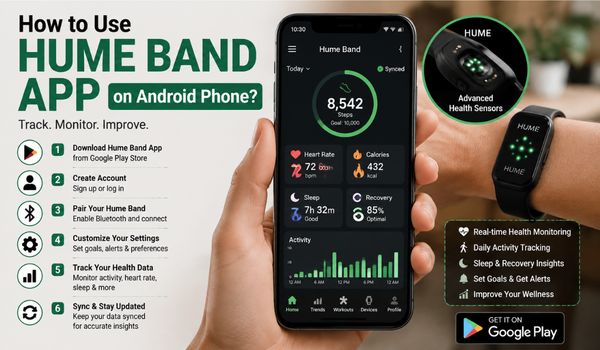
Smart wearable devices have made it easier to understand everyday activity, sleep, recovery, and other wellness trends.
The Hume Band is designed to collect health and fitness data throughout the day and present that information through the Hume Health app.
Hume’s official setup instructions recommend completing the pairing process through the Hume app rather than directly through your Android phone’s Bluetooth settings.
This guide explains how to use the Hume Band app on an Android phone, from downloading the application to checking your data and troubleshooting common connection problems.
What Is the Hume Health App?
The Hume Health app is the companion app for the Hume Band. It provides a central place to view information collected by the wearable and understand your health and wellness trends.
The Android version is available on Google Play under the name Hume Health and is developed by Hume Health Corp.
The current Google Play listing describes it as an all-in-one health and wellness application that works with the Hume Band and Hume Body Pod.
You can find the app by searching Hume Health in the Google Play Store or by using the official Android app listing.
Before beginning the setup, make sure your Android phone has Bluetooth enabled and that the Hume Band has enough battery power.
Hume’s quick-start instructions state that the Band requires Android 5.0 or later and uses Bluetooth 5.0 connectivity.
What You Need Before Setting Up Hume Band?
A smooth setup starts with a few simple preparations. Before opening the Hume Health app, check the following:
An Android Phone
You need a compatible Android smartphone. Hume’s official quick-start information currently states that the Band supports Android 5.0 or later.
A Charged Hume Band
Charge your Hume Band before using it for the first time. According to Hume’s setup instructions, the Band should be fully charged before initial use. The included USB Type-C charging cable and charging dock can be used to charge the device.
The Hume Health App
Download the Hume Health app from Google Play. Avoid downloading unofficial versions from unknown websites.
Bluetooth Enabled
Turn on Bluetooth on your Android phone before starting the pairing process. Bluetooth allows the phone and Hume Band to communicate and synchronize information.
A Hume Account
New users need to create an account in the Hume Health app. Existing Hume users can sign in using their existing account.
How to Use Hume Band App on Android Phone?
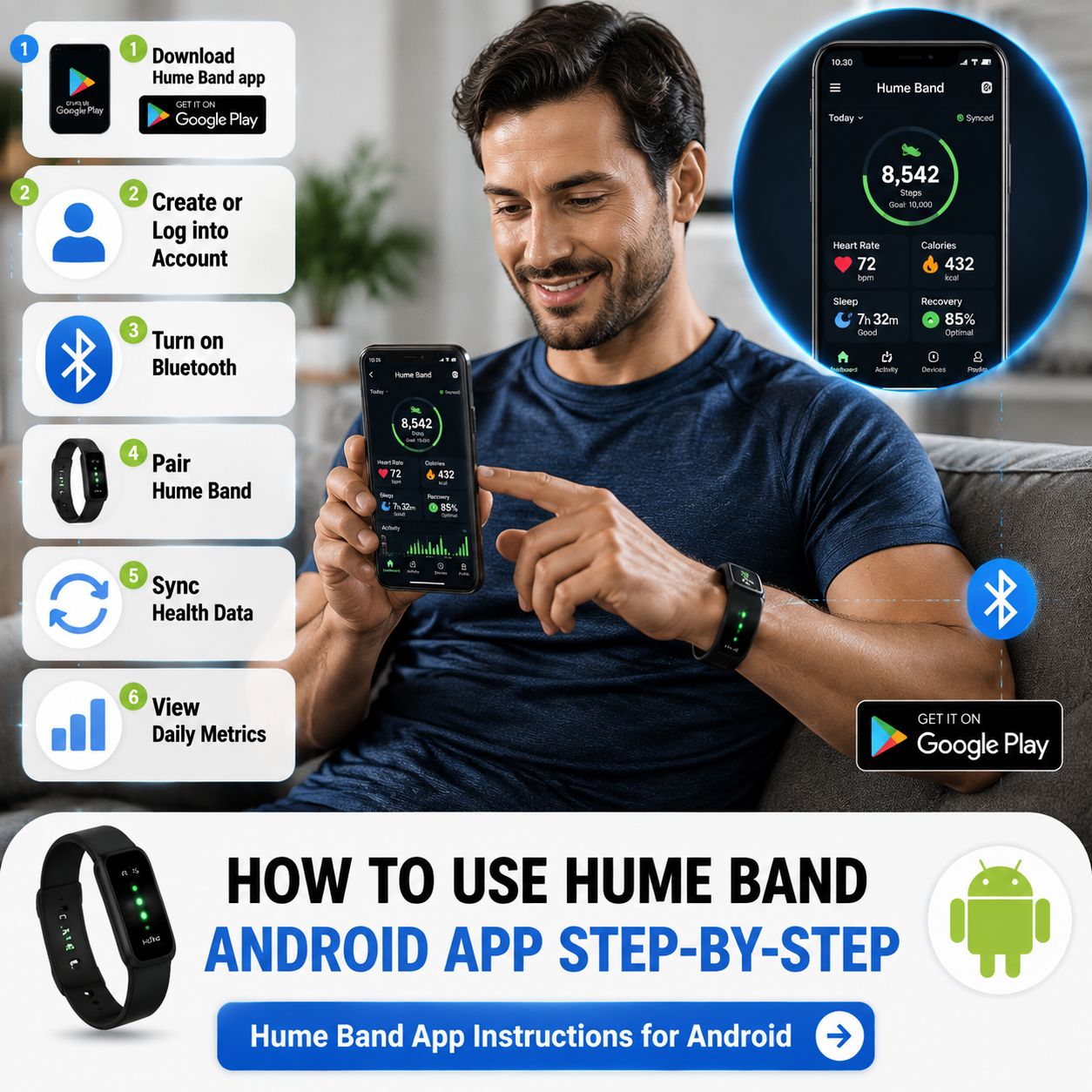
Setting up the Hume Band on an Android phone generally involves downloading the app, creating or accessing your account, enabling Bluetooth, and completing the in-app pairing process.
Here is the process step by step.
Step 1: Download the Hume Health App
Open the Google Play Store on your Android phone.
In the search bar, type: Hume Health
Look for the application published by Hume Health Corp. The current Google Play listing identifies the app as the companion application for the Hume Band and Hume Body Pod.
Tap Install and wait for the application to finish downloading.
Once installation is complete, tap Open.
Keeping the application updated is also a good idea because app updates can include bug fixes, feature improvements, and changes to device connectivity.
Step 2: Create Your Hume Account
If you are a new Hume user, open the app and select the option to create an account.
Hume’s FAQ explains that registration requires a valid email address and a password that meets the app’s security requirements. Users are also asked to verify their email address during registration.
Use an email address that you can access because you may need it for verification and future account access.
If you already have a Hume account, simply log in instead of creating another account.
Creating duplicate accounts can make it harder to keep your historical data organized, so using the same account each time is generally preferable.
Step 3: Turn On Bluetooth
Before pairing the Band, open the Bluetooth settings on your Android phone and make sure Bluetooth is enabled.
You do not need to manually pair the Hume Band from the Android Bluetooth settings.
This is an important point.
Hume’s official quick-start instructions state that pairing should be completed through the Hume app rather than the phone’s Bluetooth settings.
In other words:
Turn Bluetooth on through Android settings, but complete Hume Band pairing inside the Hume Health app.
This helps the application establish the correct connection with the wearable.
Step 4: Start the Hume Band Setup
Open the Hume Health app after Bluetooth is enabled.
If you are a new user, the app’s onboarding process should guide you through the Band setup.
For existing users, Hume’s instructions indicate that you can access the relevant Band or device area in the app and follow the setup process.
Depending on the current version of the app, the exact wording or location of buttons may change after an update.
Keep your Hume Band close to the Android phone during this process.
The closer the devices are, the easier it should be for the app to detect the wearable.
Step 5: Put the Hume Band Into Pairing Mode
Follow the instructions displayed by the Hume Health app.
Hume’s current FAQ instructions indicate that users may need to press and hold the side button on the Band to place it into pairing mode before following the on-screen instructions.
When the app detects the Band, select it and continue with the setup.
The exact screens can change as Hume releases app updates, so it is best to follow the instructions shown in your current version of the application rather than relying on an older screenshot or tutorial.
Step 6: Complete the Pairing Process
Once the Band is detected, the Hume Health app should guide you through the remaining setup.
Keep Bluetooth enabled and leave the Band near your phone until the pairing process is finished.
Do not close the app unnecessarily during setup.
After the connection is established, the app can communicate with the Band and synchronize the information collected by the wearable.
At this stage, your Android phone becomes the primary place to review information associated with your Hume Band.
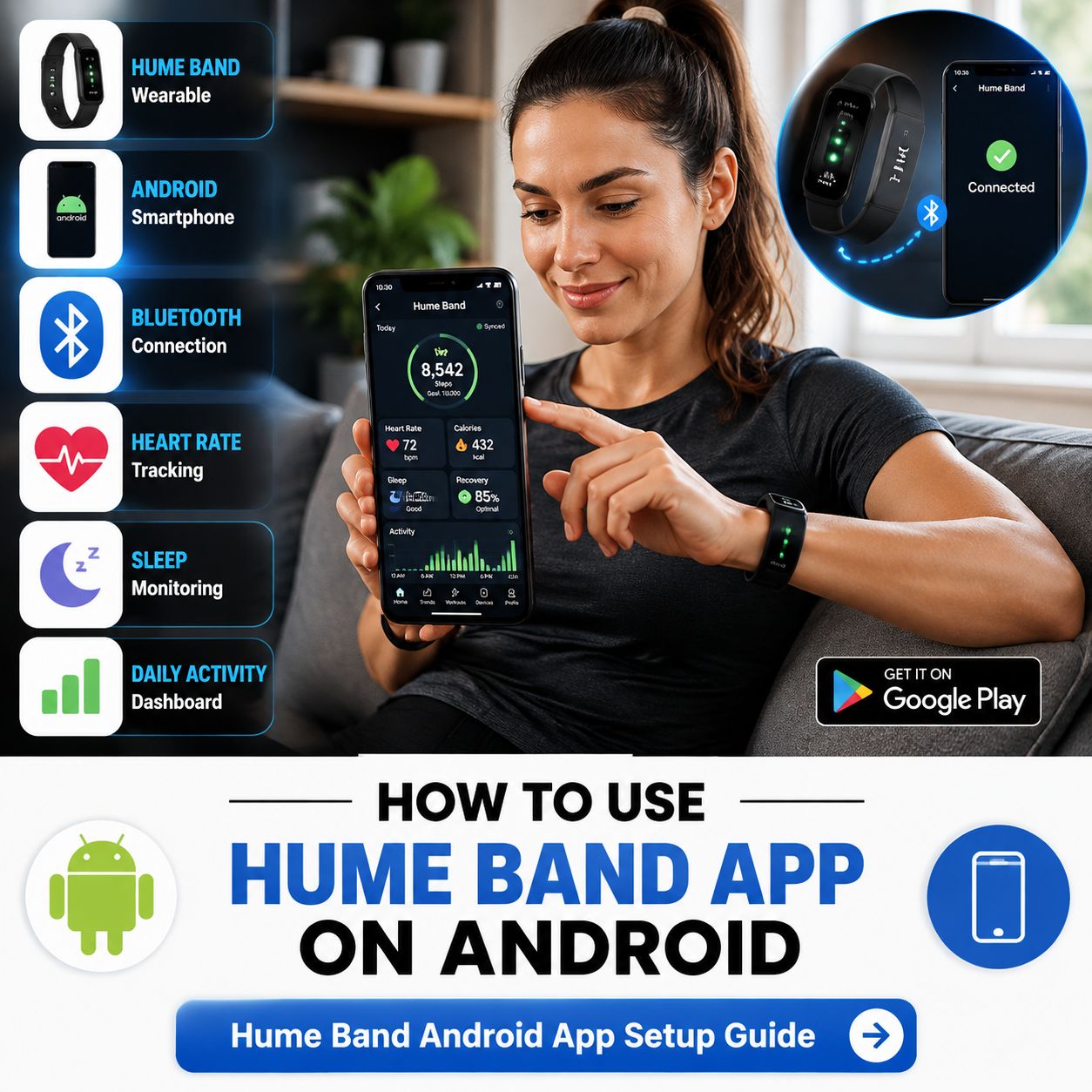
How to Sync Hume Band Data on Android?
One of the main reasons to connect the Hume Band to the app is to review the information collected by the wearable.
After your Band has been successfully paired, open the Hume Health app and allow it to connect with the device.
The application can synchronize available information from the Band and present it within the relevant sections of the app.
For the best experience, keep Bluetooth enabled when you want your phone to communicate with the Band.
If your data does not appear immediately, give the app a little time to establish the connection and synchronize.
The Google Play listing also notes that recent app updates have included improvements related to Band data and battery information.
What Can You Check in the Hume App?
The exact information available can depend on your device, app version, account, and available features.
Generally, the Hume Health app is designed to help users review health and wellness information collected through compatible Hume devices.
Depending on the features available to your Band and current application version, you may encounter areas related to:
- Daily activity
- Movement
- Fitness information
- Sleep-related information
- Recovery and wellness trends
- Heart-related metrics
- Health scores
- Personalized insights
- Historical trends
- Device and battery information
Rather than focusing on one individual number, it can be more useful to look at patterns over time.
For example, if your activity changes from one week to another, viewing the longer-term trend may provide more context than looking at a single day’s result.
The Hume app is designed to connect data to everyday habits and provide insights to help users understand their wellness journey.
How to Check Your Hume Band Connection?
If you want to confirm that your Band is connected, open the Hume Health app and look for the Band or device section.
A successful connection should allow the application to communicate with your wearable and access available data.
You can also check the following:
- Bluetooth is enabled on your Android phone.
- The Hume Band has sufficient battery.
- The Band is close to your phone.
- You are signed into the correct Hume account.
- The Hume Health app is updated.
- The Band has already been paired through the Hume app.
If these conditions are met but the Band still does not connect, try closing and reopening the Hume app.
You can also toggle Bluetooth off and on again and then retry the connection.
How to Use Hume Band During Exercise?
The Hume Band can be worn during everyday activities and workouts, as intended.
Before exercising, make sure the Band is positioned securely and comfortably.
A wearable that moves excessively on your wrist may be less comfortable and can affect the consistency of sensor contact.
After you exercise, you can use the Hume Health app to review information from your session and your broader activity history.
Recent Google Play release information also indicates that Hume has implemented phone GPS distance tracking for the Band, showing that the app’s fitness functionality can continue to evolve through software updates.
Because application features can change, check your current Hume app for the latest available exercise and tracking options.
How to Use Hume Band for Sleep Tracking?
One of the useful aspects of a wearable is that it can remain with you beyond workout sessions.
If you intend to use your Hume Band for sleep-related tracking, wear it comfortably as recommended by the manufacturer.
Make sure the device has enough battery before going to bed.
The following morning, open the Hume Health app and allow the Band to synchronize.
Instead of judging your sleep based on one night, consider looking at multiple nights and longer-term patterns.
Sleep can naturally vary because of factors such as schedule, travel, exercise, stress, and lifestyle.
The Hume Band is a wellness wearable, not a medical device. Hume specifically states that its Band provides health and wellbeing insights but is not intended to diagnose or monitor medical conditions.
For medical concerns, always consult an appropriately qualified healthcare professional.
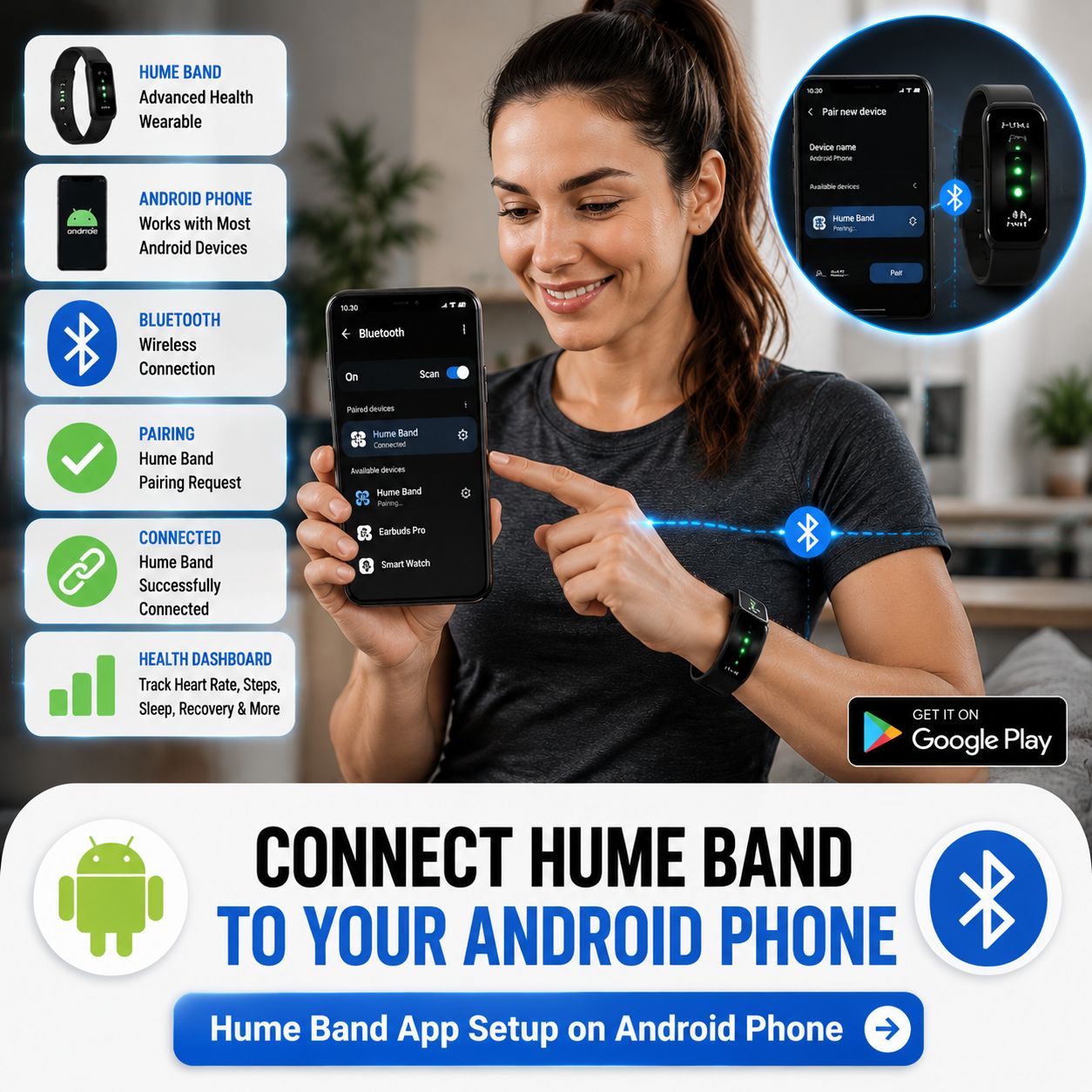
How to Keep Your Hume Band Connected to Android?
After the initial setup, maintaining a reliable connection is usually straightforward.
Keep Bluetooth Available
Bluetooth needs to be enabled when your phone needs to communicate with the Band.
Keep the App Updated
Check Google Play periodically for Hume Health updates. The application receives updates that can include performance improvements, bug fixes, and new features.
Keep the Band Charged
A low battery can interfere with normal use. Charge the Band as needed and especially before long periods of tracking.
Keep the Devices Nearby During Syncing
If you are trying to synchronize data, keep the Band reasonably close to the Android phone.
Use the Same Hume Account
If you switch between phones, sign into the same Hume account whenever possible so that your information remains associated with the correct account.
Hume Band Not Connecting to Android? Try These Fixes
Sometimes a wearable may not connect immediately. Before assuming that the Band or phone is defective, work through these simple troubleshooting steps.
Check Bluetooth
Open your Android settings and confirm that Bluetooth is switched on.
Then return to the Hume Health app and try connecting again.
Move the Band Closer
Place the Band next to your Android phone during the pairing process.
Distance and physical interference can sometimes affect wireless connections.
Restart the App
Close the Hume Health app completely and reopen it.
Try the pairing or synchronization process again.
Restart Bluetooth
Turn Bluetooth off, wait a few seconds, and turn it back on.
Then reopen Hume Health.
Check the Band Battery
Make sure the Band has enough power.
If necessary, place it on the charging dock and charge it before trying again.
Hume’s official quick-start guide recommends fully charging the Band before first use.
Update Hume Health
Open Google Play and check whether a newer version of the Hume Health app is available.
Software updates can address known bugs and improve compatibility.
Avoid Manual Bluetooth Pairing
If you attempted to pair the Band directly from Android’s Bluetooth menu, return to the Hume Health app and use its built-in setup process.
Hume specifically instructs users to pair the Band through the Hume app rather than the phone’s Bluetooth settings.
Follow the Current In-App Instructions
App layouts change over time. If an older guide tells you to tap a button that you cannot find, look for the current Band or device setup option inside your version of Hume Health.
This is one reason it is better to follow the app’s current onboarding instructions than an outdated tutorial.
What If You Get a New Android Phone?
If you purchase a new Android phone, you generally need to install the Hume Health app on the new device and sign in to your existing account.
Turn on Bluetooth and follow the app’s device setup instructions.
Avoid immediately creating a new Hume account unless you specifically need one. Using your existing account can help keep your experience connected to your previous account information.
If the Band does not appear, follow the app’s device-management or pairing instructions.
If necessary, consult Hume’s official support resources for the current procedure.
Does Hume Band Need the Hume App?
Yes. The Hume Band is designed to work with the Hume Health app.
The app serves as the companion software through which users set up the Band, connect to the device, and access the information it collects.
Hume’s official quick-start instructions direct users to download the Hume app and complete Band pairing through the application.
The Google Play listing also identifies Hume Health as the companion app for the Hume Band.
This means downloading random third-party fitness apps is not necessary for basic Hume Band setup.
Is the Hume Band App Free on Android?
The Hume Health app is available on Google Play, though the current listing indicates it includes in-app purchases.
The availability of specific premium features, subscriptions, trials, or other paid services can change over time.
Before purchasing any optional service, review the current pricing and subscription terms displayed inside the application or on Hume’s official website.
The core point is that Android users can access the official Hume Health application through Google Play and use it as the companion app for their Hume Band.
Tips for Getting Better Results From the Hume Band
Using a wearable consistently is often more useful than checking it occasionally.
Here are some practical habits that can make your Hume Band experience more useful.
Wear It Consistently
If you want to understand your personal trends, regular use can give you more information to compare over time.
Keep Your Data Synced
Open the Hume Health app regularly so that available Band information can synchronize.
Look at Trends
Do not become overly focused on a single day’s result. Compare information across several days or weeks.
Combine Data With Your Habits
Consider what was happening in your daily routine when a metric changed. Sleep, exercise, food, stress, travel, and schedule changes can all influence how you feel and perform.
Keep the App Updated
A current version of the app can provide access to the latest improvements and features.
Treat Wellness Data as Information
Wearable measurements can be useful for understanding patterns, but they should not automatically be treated as medical diagnoses.
Hume itself states that the Band is not a medical device and is not intended to diagnose or monitor medical conditions.
Final Thoughts
Learning how to use the Hume Band app on an Android phone does not have to be complicated.
The basic process is to download the official Hume Health app, create or access your account, turn on Bluetooth, and follow the application’s pairing instructions.
The most important setup tip is to pair the Band using the Hume Health app rather than trying to connect it manually through your Android phone’s Bluetooth menu. Hume’s official instructions specifically recommend this approach.
Once your Band is connected, make a habit of checking the Hume Health app regularly. Instead of focusing on individual readings, use the available information to identify patterns in your activity, sleep, fitness, and overall wellness.
If your connection stops working, start with the basics: check Bluetooth, charge the Band, keep it near the phone, update the app, restart the application, and repeat the in-app pairing process.
Most importantly, remember that wearable data is best used as a tool for understanding your habits and trends. It can complement a healthy lifestyle, but it should not be considered a substitute for professional medical evaluation.
With the Hume Band paired correctly and the Hume Health app installed on your Android phone, you can conveniently review your wearable data and follow your wellness journey all in one place.
.
.
.